So here’s the thing – I spent way too long gaming on a hand-me-down office monitor from 2012, and honestly? It was brutal. The colors were washed out, the refresh rate made fast-paced games feel like watching a slideshow, and I kept telling myself “it’s fine, it’s fine.” Spoiler alert: it wasn’t fine! When I finally decided to upgrade to a proper budget gaming monitor under $300, the difference was like night and day.
Finding affordable gaming monitors that don’t suck has become way easier in 2026 than it used to be. You can actually get 144Hz refresh rates, decent response times, and even 1440p resolution without selling a kidney. Let me walk you through what I learned the hard way so you don’t have to.
Why the $300 Sweet Spot Actually Makes Sense
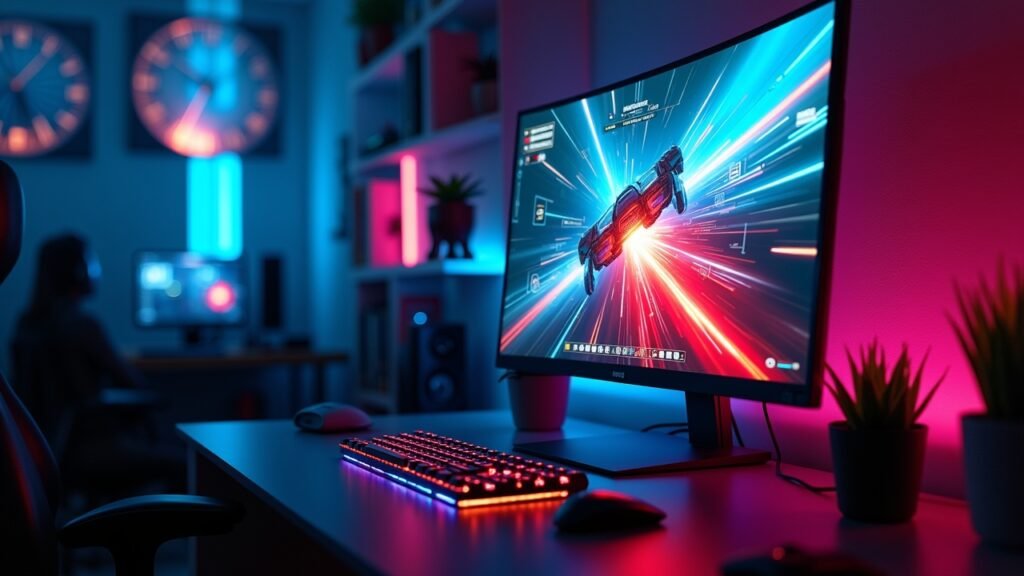
I made the mistake of thinking I needed to save up for a $600 monitor to get anything decent. Wrong! The $200-$300 range is where manufacturers are really competing right now, which means you’re getting features that would’ve cost double just a few years back.
This price bracket gives you access to 1080p monitors with high refresh rates, or you can stretch to entry-level 1440p displays. You won’t get both premium resolution AND super-fast refresh rates, but that’s okay – most of us don’t need 240Hz anyway unless you’re going pro in competitive shooters.
The competition between brands like AOC, MSI, and ASUS has been fierce lately, and we’re the ones who benefit from that.
Refresh Rate vs. Resolution: The Gaming Dilemma I Actually Solved
Here’s where I totally messed up initially. I went for a 1440p 60Hz monitor because I thought “ooh, pretty graphics!” For single-player games, sure, it looked gorgeous. But when I jumped into Apex Legends or any fast-paced multiplayer game, I was getting absolutely destroyed because everything felt sluggish compared to my friends’ 144Hz setups.
So I sold that monitor at a loss (ugh) and switched to a 1080p 144Hz display instead. Best gaming decision I ever made! The smoothness is addictive, and honestly, at 24 inches, the difference between 1080p and 1440p isn’t as dramatic as the internet makes it seem.
For competitive gaming and esports titles, prioritize refresh rate. If you’re more into RPGs, strategy games, or single-player adventures, then higher resolution might be your jam. Know thyself, as they say.
Response Time: Why Those Milliseconds Actually Matter
I didn’t think response time was a big deal until I experienced ghosting firsthand. You know that annoying blur trail that follows fast-moving objects on screen? That’s what happens when response time is too slow, and it drove me nuts during intense gaming sessions.
Look for monitors with 1ms or 5ms response times – anything higher and you’ll notice the ghosting, especially in FPS games. Most budget gaming monitors now advertise 1ms response times, though sometimes that’s measured using “MPRT” instead of the more accurate “GtG” measurement. Just something to watch out for when reading specs.
I learned this from RTINGS monitor reviews, which test response times properly instead of just trusting manufacturer claims.
Panel Types: My TN vs. IPS Experience
Okay, so there’s basically three types you’ll see: TN, IPS, and VA panels. TN panels are the cheapest and fastest, but the viewing angles are terrible and colors look kinda washed out. IPS panels have beautiful colors and great viewing angles but used to be expensive – not anymore though!
I’ve owned both. My current monitor is an IPS panel, and honestly, I can’t go back to TN. The colors just pop more, and when you’re gaming for hours, it’s easier on your eyes. VA panels are somewhere in between with great contrast but slower response times.
For under $300, you can definitely snag an IPS panel with 144Hz these days. That’s what I’d recommend unless you’re super competitive and need that absolute fastest response time that TN offers.
What About FreeSync and G-Sync?
Screen tearing used to drive me absolutely bonkers! That’s when part of your screen shows one frame and another part shows a different frame, creating this ugly horizontal line across your display. FreeSync (for AMD graphics cards) and G-Sync (for NVIDIA) solve this problem by syncing your monitor’s refresh rate with your GPU’s output.
Here’s the good news: most budget monitors now support FreeSync, and many also work with NVIDIA cards through G-Sync Compatible mode. I’m running an NVIDIA RTX 4060, and it works perfectly with my FreeSync monitor. Just check the G-Sync compatibility list before buying to be safe.
This feature alone is worth prioritizing because it makes everything feel smoother, even if your frame rates fluctuate.
Size Matters (But Not How You Think)
I went through a phase where I thought bigger was always better. Bought a 32-inch monitor and realized I was turning my head too much during gaming – it was actually giving me neck strain! For competitive gaming, 24-27 inches is the sweet spot where you can see everything without excessive head movement.
At 1080p resolution, stick with 24 inches max. At 1440p, you can go up to 27 inches comfortably. Anything larger and the pixel density starts looking rough unless you’re moving up to 4K, which definitely ain’t happening at our budget.
My Top Features Checklist for Budget Gaming Monitors
After going through three different monitors in two years (yeah, I know), here’s what I actually look for now:
- At least 144Hz refresh rate for smooth gameplay
- 1ms to 5ms response time to avoid ghosting
- IPS panel for better colors and viewing angles
- FreeSync support (G-Sync Compatible is a bonus)
- VESA mount compatibility if you want flexibility later
- Adjustable stand with height and tilt options
- At least one DisplayPort connection for higher refresh rates
HDMI is fine, but older HDMI versions might cap you at 120Hz instead of 144Hz. DisplayPort is usually better for gaming monitors, so make sure your GPU has one!
Common Mistakes I Made (Learn From My Pain)
Don’t impulse buy based on one YouTube review like I did. Check multiple sources because some reviewers get paid to say nice things. I got burned by a monitor that looked amazing in videos but had terrible backlight bleeding that nobody mentioned.
Also, don’t ignore used monitors from reputable sellers. I saved $80 buying an “open box” monitor from a legit retailer that looked brand new. Just make sure there’s a return policy in case you get dead pixels or other issues.
And please, for the love of gaming, calibrate your monitor when you get it! The default settings are usually oversaturated and way too bright. Spend 10 minutes adjusting brightness, contrast, and color temperature – your eyes will thank you during those marathon gaming sessions.
Ready to Level Up Your Gaming Setup?
Finding the right budget gaming monitor under $300 doesn’t have to be overwhelming once you know what actually matters. Focus on refresh rate for competitive games or resolution for immersive single-player experiences – you can’t have both at this price point, and that’s totally okay!
Remember that your monitor is something you’ll be staring at for hours every day. It’s worth spending time researching and maybe waiting for a sale to get exactly what you want rather than settling for whatever’s cheapest right now. Trust me, your future gaming self will appreciate the effort.