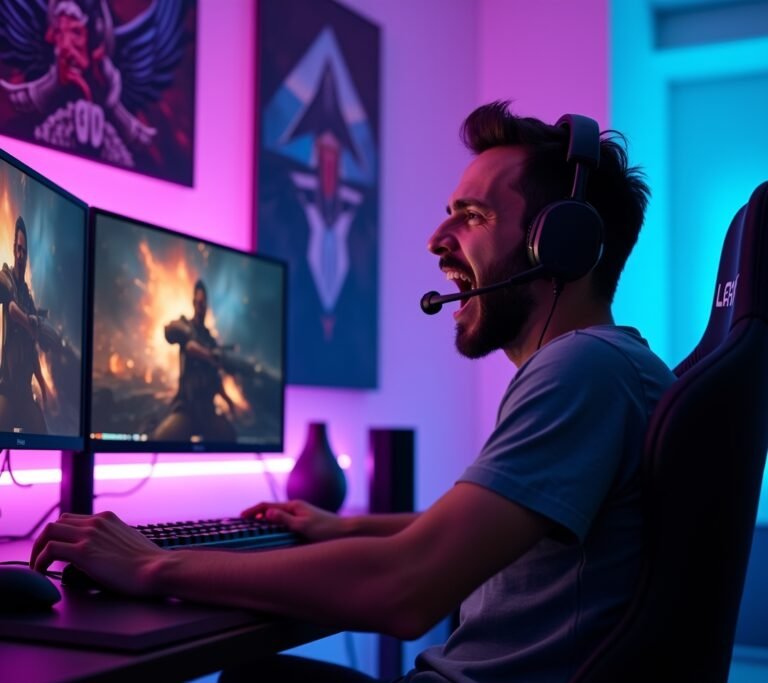
Look, I’ll be honest with you. There was this one night last year when I rage-quit not because of the game, but because my Windows PC was stuttering so bad during a crucial raid that my entire guild basically roasted me in voice chat. That’s when I knew something had to change! Getting your Windows gaming setup running smooth isn’t rocket science, but man, there’s definitely a learning curve that involves some trial and error.
Here’s the thing about gaming on Windows – it’s like owning a sports car that comes with the parking brake half-engaged from the factory. Microsoft loads up the OS with all these background processes and features that regular folks need, but us gamers? We need every ounce of performance we can squeeze out.
The Game Mode Switch That Actually Works

First thing I did was enable Windows Game Mode, and I’m kicking myself for not doing it sooner. You just hit the Windows key, type “Game Mode,” and flip that switch on. Sounds too simple, right?
What this does is tell Windows to prioritize your game over everything else running in the background. No more random Windows updates deciding to download right when you’re about to clutch a 1v5. I noticed about a 10-15 FPS boost in most titles, which honestly surprised me because I’d heard mixed reviews online.
The official Microsoft documentation explains how it works, but basically it reduces background activity and optimizes CPU threads for your game.
Graphics Settings I Wish Someone Told Me About Earlier
Okay, so there’s this hidden gem in Windows called Graphics Settings. I stumbled onto it by accident while googling something completely unrelated – typical, right?
Go to Settings > System > Display > Graphics settings. Here’s where it gets good. You can manually tell Windows which apps need high performance versus which can run on integrated graphics or whatever.
I set all my games to “High Performance” mode, and it was like my GPU finally got the memo that it’s supposed to be working. The difference in games like Cyberpunk 2077 and even older titles was noticeable. Frame times became more consistent, which for me matters more than raw FPS numbers.
The Power Plan Nobody Uses
Here’s something I messed up initially. I had my PC on “Balanced” power mode for literally two years of gaming. Facepalm moment when I realized this!
Switch to “High Performance” or “Ultimate Performance” power plan through Control Panel. Yeah, your electricity bill might go up a tiny bit, but the performance gains are totally worth it. Your CPU won’t be throttling itself during intense gaming sessions anymore.
To enable Ultimate Performance (which isn’t visible by default), you gotta open Command Prompt as administrator and type: powercfg -duplicatescheme e9a42b02-d5df-448d-aa00-03f14749eb61. Sounds scary but it’s harmless, trust me.
Background Apps Are FPS Killers
This one hurt a little because I had to admit I was the problem. All those startup programs? Discord, Spotify, RGB control software, that random Nvidia thing, Steam overlay – they all add up.
I went through Task Manager (Ctrl+Shift+Esc) and disabled like half my startup programs. Do you really need that printer software launching every single time? Probably not.
For the apps I do want running, I make sure they’re not eating CPU cycles unnecessarily. The PC Gamer optimization guide has some solid advice on this too.
Driver Updates That Actually Matter

I used to be lazy about updating my graphics drivers. Big mistake. HUGE.
Now I check for Nvidia or AMD driver updates at least once a month. These updates often include game-specific optimizations that can seriously boost performance. Plus, newer drivers sometimes fix those weird crashes that you thought were just part of life.
Use GeForce Experience for Nvidia cards or AMD Software for Radeon cards – they make it pretty painless. Just don’t install every single optional component they try to sneak in there.
Storage Speed Makes Everything Better
Moving my games from my old mechanical hard drive to an SSD was probably the single biggest improvement I’ve made. Load times went from “make a sandwich” to “blink and you’ll miss it.”
If you’re still running games off an HDD in 2026, I’m not judging (okay maybe a little), but seriously consider upgrading. Even a basic SATA SSD makes a massive difference. NVMe drives are even faster but honestly, for gaming, a regular SSD does the job just fine.
Your Gaming Sweet Spot Awaits
The truth is, optimizing Windows for gaming isn’t about doing one magical thing – it’s about stacking small improvements that add up to a noticeably smoother experience. Will you suddenly go from 60 to 144 FPS? Probably not. But will your games feel more responsive, load faster, and crash less? Absolutely.
Every PC is different, so you might need to experiment with what works for your specific setup. Some of these tweaks might give you huge gains, others might be minimal. That’s totally normal and part of the process.
The important thing is you’re taking control of your gaming experience instead of just accepting whatever default settings Microsoft threw at you. Start with the easy wins like Game Mode and power settings, then work your way through the rest as you have time.
Want more tips on getting the most out of your gaming setup? Head over to Voltzora where we’ve got tons of guides covering everything from hardware choices to software tweaks that’ll keep your rig running like a dream!