Did you know that over 65% of PC gamers prefer building their own rigs instead of buying prebuilt systems? I was terrified when I first heard that statistic because I could barely change a lightbulb without second-guessing myself! But here’s the thing – building your own gaming PC isn’t just about saving money (though you absolutely will). It’s about creating something that’s uniquely yours, and honestly, there’s nothing quite like hitting that power button for the first time and watching your custom build come to life.
I remember standing in my garage with a pile of expensive computer parts spread across an old blanket, wondering if I’d just made the biggest mistake of my life. Spoiler alert: I hadn’t, but man, the journey had its moments!
Getting Your Parts Together (Without Losing Your Mind)
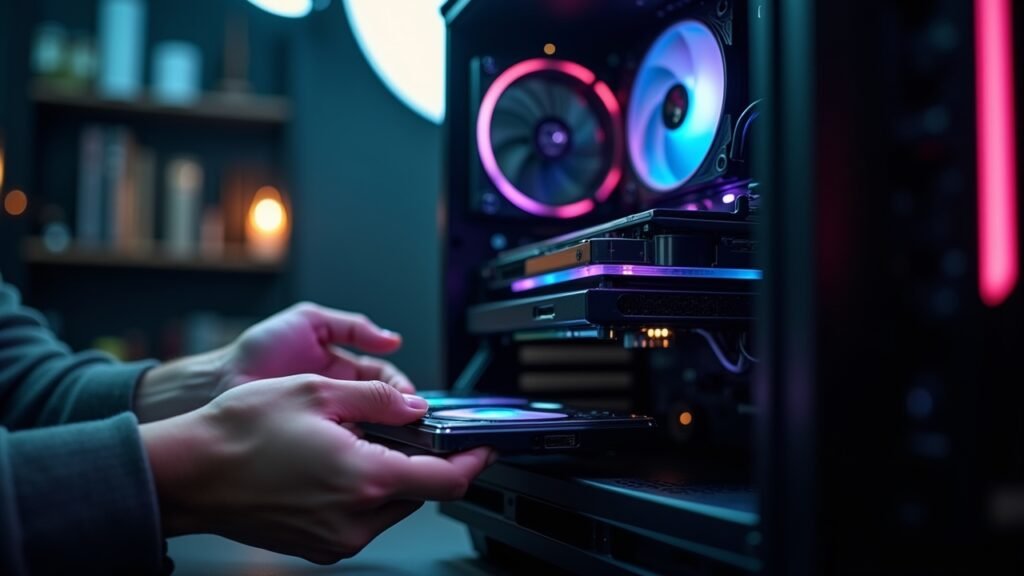
First things first – you need to know what components you’re actually buying. I made the rookie mistake of ordering a CPU without checking if it was compatible with my motherboard. Yeah, don’t be like me.
Here’s your shopping list for a solid gaming PC build:
- CPU (processor) – I went with AMD Ryzen because everyone said Intel was overpriced, and you know what? They were right.
- Motherboard – Make sure it matches your CPU socket type!
- GPU (graphics card) – This is where you’ll spend the most money, trust me.
- RAM – 16GB is the sweet spot for gaming in 2026, though 32GB doesn’t hurt.
- Storage (SSD and/or HDD) – Get an NVMe SSD for your operating system, seriously.
- Power supply unit (PSU) – Don’t cheap out here; I learned that lesson the hard way.
- PC case – Pick something with good airflow and cable management.
- CPU cooler – Stock coolers work, but aftermarket ones are way quieter.
I used PCPartPicker to check compatibility, and it literally saved my butt multiple times. The website automatically flags when parts won’t work together, which is super helpful when you’re drowning in spec sheets.
Actually Building the Thing (Where Things Get Real)
Okay, so you’ve got all your components. Now what? Take a deep breath – you’ve got this.
Start by installing the power supply into your case. I know it seems backwards, but trust the process. Then comes the motherboard prep, which is where I first felt like maybe I was in over my head. You’ll install the CPU, RAM, and M.2 SSD onto the motherboard before putting it in the case. This step made me sweat bullets because CPUs are fragile and expensive, but honestly? It’s easier than it looks.
The CPU just drops into place – no force needed. If you’re forcing it, STOP. Seriously, stop right now and check the orientation. I almost bent some pins on my first build because I was being impatient, and let me tell you, that moment of panic was not worth it.
Next up is thermal paste application, which people online make way too complicated. Just put a small pea-sized dot in the center of the CPU. That’s it! Don’t spread it around like you’re making a sandwich – the cooler will do that when you install it.
Cable Management and Final Touches
Here’s where things get messy, literally. Cable management was my nemesis for my first three builds. There are cables everywhere – power cables, RGB cables, front panel connectors that are labeled in the tiniest font known to mankind.
Pro tip: Take photos of everything as you go. I cannot stress this enough! When you’re staring at eight identical-looking cables at 11 PM, those photos will be your best friend. Also, read your motherboard manual for the front panel connectors. Those little pins are easy to mess up, and I definitely plugged my power button into the HDD LED slot more than once.
Use zip ties or velcro straps to route cables behind the motherboard tray. It improves airflow and makes your build look clean, which matters more than I thought it would. There’s something satisfying about opening your case and seeing organized cables instead of a rat’s nest.
The Moment of Truth (And Possible Heart Attacks)
You’ve assembled everything. Double-checked all connections. Maybe triple-checked because you’re paranoid like me. Now it’s time to boot up your new gaming PC.
I won’t lie – pressing that power button for the first time is terrifying. What if nothing happens? What if something catches fire? (That actually happened to my buddy Steve, but that’s because he forgot to remove the plastic protector from his CPU cooler. Don’t be Steve.)
When everything works and you see that BIOS screen, you’ll feel like an absolute genius. Then you’ll realize you need to install Windows and all your drivers, but hey, that’s the easy part! Check out guides on Tom’s Hardware for detailed driver installation walkthroughs if you get stuck.
Your Gaming Rig Awaits
Building a gaming PC might seem scary at first, but it’s honestly one of the most rewarding tech projects you can tackle. You’ll save money compared to prebuilt systems, learn valuable skills, and end up with a machine that’s perfectly tailored to your gaming needs. Plus, when something goes wrong down the line (and eventually something will), you’ll actually know how to fix it instead of panicking and calling tech support.
Remember to ground yourself while building, work on a non-carpeted surface, and take your time. Rome wasn’t built in a day, and neither should your PC be. If you’re feeling overwhelmed, that’s totally normal – we all start somewhere!
Ready to dive deeper into the world of PC gaming and tech? Head over to Voltzora for more guides, tips, and honest reviews that’ll help you level up your gaming setup. We’ve got tons of content covering everything from choosing the best peripherals to optimizing your system performance. Happy building!