Overclocking GPU Guide: How I Squeezed Every Last Frame Out of My Graphics Card
Here’s a fun little stat for you — most GPUs ship running well below their actual potential. I’m talking 10-15% of free performance just sitting on the table, waiting for someone to grab it. When I first discovered that, I honestly felt a little cheated!
Overclocking your GPU is one of the easiest ways to boost gaming performance without spending a dime. And yet, so many people are terrified of it. I get it — I was too, back when I thought I’d fry my first GTX 1070 by bumping the clock speed up 50 MHz.
Spoiler: I didn’t fry anything. And after reading this overclocking GPU guide, you won’t either.
What Even Is GPU Overclocking?
In simple terms, overclocking means pushing your graphics card’s core clock speed and memory clock beyond factory settings. The manufacturer sets conservative speeds to ensure stability across millions of cards. But your specific card? It can probably handle more.
Think of it like a car that’s electronically limited to 120 mph but the engine can actually do 140. You’re just removing that artificial cap. Nothing weird, nothing dangerous — when done right.
Tools You’ll Need Before Starting
You don’t need fancy equipment. Seriously, everything is free. Here’s what I always use:
- MSI Afterburner — The gold standard for GPU overclocking software. Works with basically every graphics card, not just MSI ones. Grab it from MSI’s official site.
- FurMark or 3DMark — For stress testing your overclock. I personally prefer 3DMark because it feels more like a real-world gaming load.
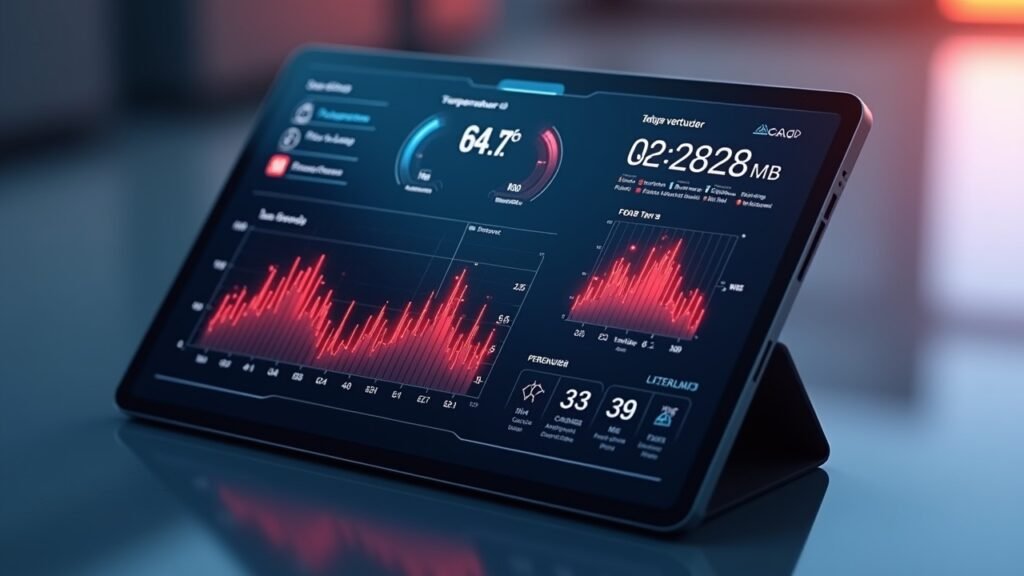
- HWMonitor — To keep an eye on GPU temperature, voltage, and fan speeds during testing.
That’s literally it. Took me longer to find my reading glasses than to download all three.
Step-by-Step: How to Overclock Your GPU Safely
Alright, here’s where the magic happens. I’ve been through this process dozens of times across different cards, and this method has never let me down.
Step 1: Know Your Baseline
Run 3DMark or your favorite benchmark before touching anything. Write down your score, your max GPU temp, and the default clock speeds. You need this baseline to know if your overclock is actually helping.
Step 2: Bump the Core Clock Gradually
Open MSI Afterburner and increase the core clock by 25 MHz. That’s it — just 25. I made the mistake once of jumping straight to +150 MHz because some forum dude said his card handled it fine. My screen went black and my heart nearly stopped.
After each 25 MHz increase, run a stress test for about 10 minutes. If no crashes, artifacts, or weird flickering happens, bump it up another 25 MHz. Repeat until things get unstable, then back off by 25 MHz.
Step 3: Tweak the Memory Clock
Same process here, but with the memory clock slider. Increase by 50 MHz increments this time since memory is generally a bit more forgiving. Memory artifacts usually show up as sparkly pixels or weird textures — you’ll know em when you see em.
Step 4: Adjust the Fan Curve
This one gets overlooked all the time. A custom fan curve in Afterburner keeps your GPU thermals in check during heavy loads. I usually set my fans to hit 80% at around 75°C. It’s a bit louder but totally worth the thermal headroom.
Step 5: Test in Real Games
Benchmarks are great, but you gotta test in actual games too. I run something demanding like Red Dead Redemption 2 for at least 30 minutes. If everything’s stable, congratulations — you’ve got yourself a successful overclock.
Quick Safety Tips From Someone Who’s Messed Up
Never touch the voltage slider unless you really know what you’re doing. Overvolting can actually reduce your card’s lifespan, and the extra performance gain is usually minimal anyway. Also, keep your GPU temperature below 85°C under load — anything above that and you’re just cooking silicon for no good reason.
And please, make sure your power supply can handle the extra draw. A struggling PSU is a recipe for instability.
Go Grab Those Free Frames
Overclocking your GPU is honestly one of the most satisfying tweaks you can do to your PC. It costs nothing, takes maybe an hour, and the performance gains are real. Just be patient, go slow, and don’t skip the stress testing.
Every card is different though, so your results will vary from mine. That’s half the fun — finding your specific card’s sweet spot. If you’re hungry for more PC performance tips and hardware guides, come hang out with us at Voltzora — we’ve got plenty more where this came from!